![iseatz-logo-white.png]](https://www.iseatz.com/hs-fs/hubfs/IZ%20Logos/iseatz-logo-white.png?height=40&name=iseatz-logo-white.png)
Step 1: Open a Worksheet
- Log in to your Snowflake Reader Account.
- Navigate to the Worksheets tab in the Snowflake interface.
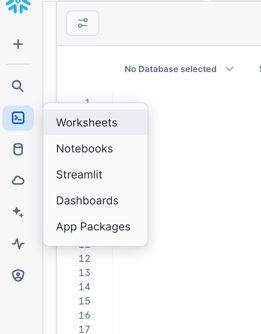
- Create a new worksheet or use an existing one.
Step 2: Identify the Curated Data You Want
- Explore the curated data available to you in the Data Explorer on the left-hand side. Curated data views generally have very specific names that include timeframes and data scope. e.g.
prior_month_consumed_reservations. - Locate the database, schema, and table containing the data you need.
- For example,
database_name.schema_name.table_name.
- For example,
Step 3: Write Your Query
- In the worksheet, type the following query to pull all data from the table:
SELECT * FROM database_name.schema_name.table_name; - Replace
database_name.schema_name.table_namewith the actual location of your table.
To learn more about writing Snowflake queries, check out the Querying Snowflake with SQL article.
Step 4: Run the Query
- Click the Run button (or press
Ctrl + Enter/Cmd + Enter) to execute your query. - Wait for the results to populate below the query editor.
Step 5: Review and Export
- Review the Results: Check that the data returned is what you expected. Learn more in Reviewing Query Results in Snowflake.
- Export the Data: Save the results as a CSV file for further use. Learn how in Exporting Data from Snowflake.
That’s It!
With just a few steps, you can access curated data, review it, and export it for use in your projects. For more advanced SQL queries, see our other guides or reach out to your team for support.
Happy querying!